
Two Factor Authentication (2FA)
Add another layer of security to your login
How do I Enable Two-Factor Authentication (2FA) for my Vault 1 Control Panel?
2FA or two-factor authentication is a two-step verification process which offers an extra layer of security when accessing your account. Once enabled, your login(s) to VAULT 1 can only be completed if both your password and an authenticator code is provided. We support any TOTP authenticator apps, however we recommend Google Authenticator.
Android Download
https://play.google.com/store/apps/details?id=com.google.android.apps.authenticator2&hl=en_GB
Apple Download
https://apps.apple.com/gb/app/google-authenticator/id388497605
Preparation
SOME GOOD ADVICE: Do not add 2FA until you have read everything online about how it works and the advantages / drawbacks. Make yourself completely familiar with how the Google Authenticator app works. Watch videos and read articles online. DO NOT embark on this lightly as 2FA makes accessing your control panel VERY secure, its easy to get locked out if you mis-understand the instructions or make a mistake. We therefore try to make this process logical and foolproof.
Begin the process in the morning by requesting authorisation from us. Aim for 10am – 2pm daily as we are able in an emergency to re-set the Control Panel and access if you get locked out.
You MUST ask us to activate the facility for 2FA or it wont work.
On requesting 2FA from us we will activate the facility on the server and send you a SPECIAL link, password and username, its not the one you usually use to log into your CP with. Dont log in yet as you need the Google Authenticator App or Chrome Plugin.
Install Google Authenticator
You can then download the Google Authenticator or any TOTP compliant Authenticator and set it up on your device. At some point you will be asked to ADD an Authenticator. Choose scan QR if its not already selected. This is the connection between YOU > GOOGLE > VAULT1. This authenticator “code” comes in the form of a QR code. (the small square that looks like a crossword puzzle)
NOW … Add a New Authenticator to the CP
For simplicity : We will refer to the parts you do in Vault1 as “on your computer” and the parts we do on the chosen device as “your phone”.
On your computer, inside your control panel, follow the link to Security Details under Account section (see Figure 1 below). Note that this is the MENU ITEM at the top of the page, and not one of the icons.
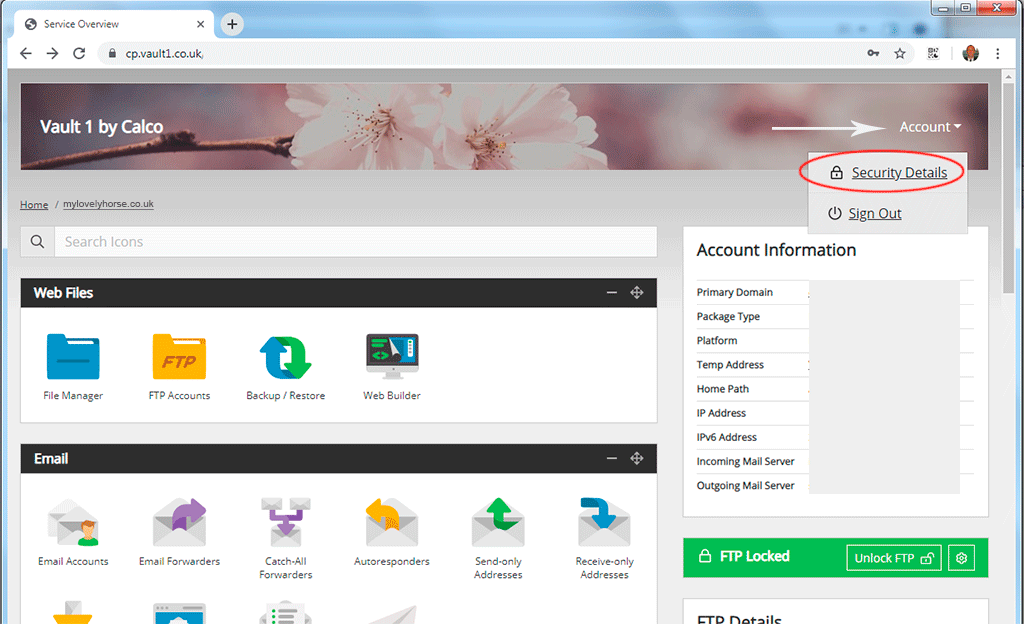
Figure 1 – The Security Menu.
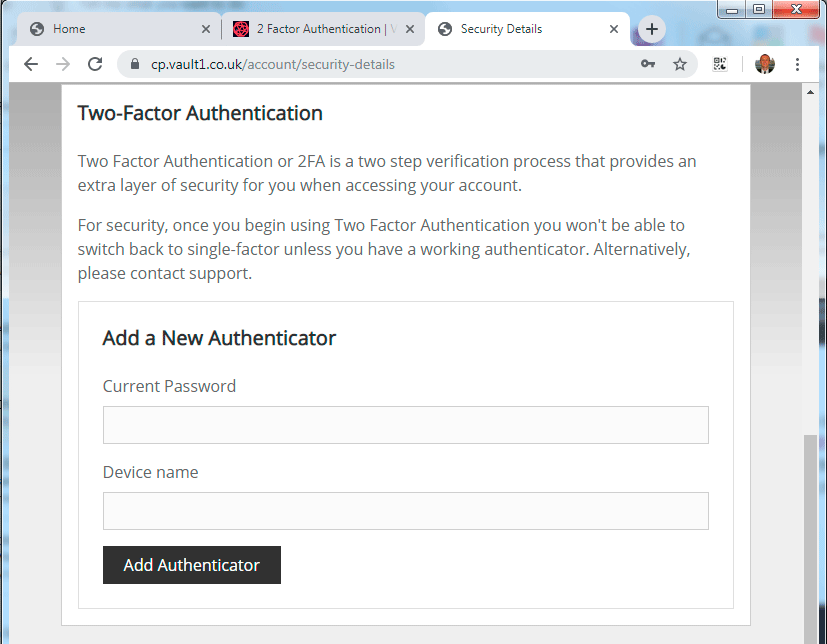
Figure 2 – The 2FA Screen : You add your Authenticator data in these boxes (have your phone ready)
A Step by step guide to installing 2FA with Google Authenticator on The Vault 1 system
By now you should be logged into your Vault1 control panel using the link we sent and in the Section called Security (on your computer).
You should also have your phone (or device which you wish to use as an authenticator) to hand with the Google Autenticator App installed, and waiting for its QR code.
On your computer .. Towards the bottom of the page in your Vault1 CP, you’ll see a section titled Two-Factor Authentication. To add your first device, enter your current login password and name the device you wish to add. The Device Name is purely for your own reference (e.g. myphone). When you click ADD AUTHENTICATOR a QR Code will be displayed for 30 seconds only, so this is why you have your phone ready.
Scan the QR Code into the Google Authenticator App using your phone. The QR will be recognised immediately and you can say OK or whatever is necessary to complete the process on the phone.
NEXT, AND DO IT QUICKLY, get back to the computer and the pop-up form on the screen and confirm you completed everything successfully; if you don’t the system will assume you didn’t get the code or don’t want to proceed and will cancel 2FA. You will then need to REMOVE this authenticator from your app on your phone.
Assuming everything went well you have 2FA installed and ready to use.
Adding a Second Authenticator
We recommend having at least two devices on your account. This is in case one of your authenticators is lost or unavailable. Once a second or more devices have been added, any device can be used to log in.
Removing an Authenticator
To remove a device, select delete from the list of your authenticator devices, on the same page.
Lost Device
If you’re unable to access your account after it has been protected by 2FA, please email sales@vault1.co.uk . We’ll work with you to reset your access.
AND FINALLY
2FA may look difficult to install but follow the instructions carefully and you should be fine.
- Ask us to activate 2FA during office hours
- Download the Google software & configure it
- Fill in the form in your control panel for 2FA
- Scan the QR with your device (phone) & confirm you have done it.
- Begin using 2FA
HELP AND READING
This is the Google Authenticator Home Page with great info, guides and tips.
https://support.google.com/accounts/answer/1066447?co=GENIE.Platform%3DAndroid&hl=en
Here is a video showing how the Google Authenticator App Works (this is not a guide – just a random and typical user experience)
https://www.youtube.com/watch?v=B-Iu1QGkP-o&t=204s
BACKGROUND AND FURTHER READING
Official UK goverment information on 2FA
https://www.ncsc.gov.uk/guidance/setting-two-factor-authentication-2fa
Official UK goverment information on Multi factor authentication
https://www.ncsc.gov.uk/guidance/multi-factor-authentication-online-services