
WordPress Staging
One of the best features hosting of Vault 1 WordPress Hosting.
What is Staging?
A WordPress staging website is a failthful copy of your live WordPress site, copied to our Staging Servers. It can be the development and only version of your website before you launch the website proper.
This means you can develop the website without anyone seeing the “LIVE” website.
Easily and confidently change WordPress themes, plugins, code snippets without worrying about crashing the live site.
A staging site is a place to develop or troubleshoot without your actions having an effect on the users of your live website.
Once you AND the client is happy with the staging site, you can, with one click… migrate those changes to the live site in minutes.
HOW IT WORKS
Clone your site with a single click, carry out tests or add new content or code. You can share your staging site with anyone by giving them the ‘staging’ URL.
Lets assume you want to develop a new wordpress website. You use your WordPress Hosting to CLONE the template WordPress website to STAGING.
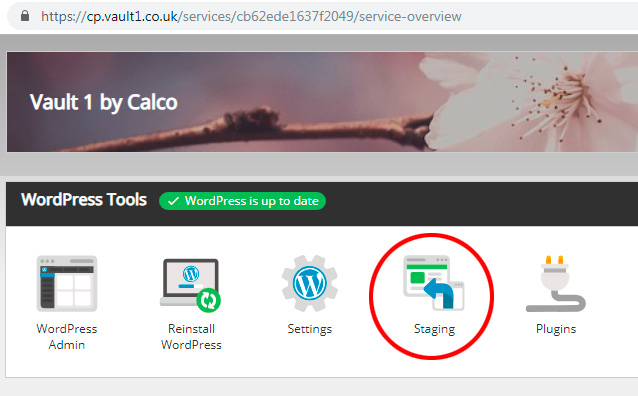
First select “staging” from your VAULT 1 control panel – it’s circled in red above. When you click this tyou will see an informational page outlining the whole process and what data is over-written. i.e. If you have used staging before the old staging will be over-written. After reading the panels of information, click the GREY BUTTON labelled “Create Staging Site”

THE PROCESS
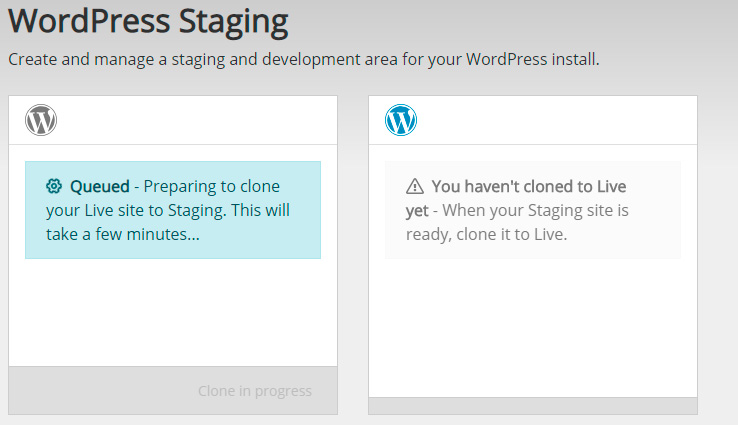
Now you will see the staging progress window. Initially your website will be cloned and the system dispays a QUEUING notice. (Its usually just a short wait). Once the site is copied to the staging server, the notice changes to “Success – Your clone is complete!”
You will then be able to edit the STAGING version of your website in complete privacy.
NOTE: While the Live website files are saved to the PUBLIC_HTML folder, the staging files are located in the STAGING_HTML folder. The two websites are completely separate and autonomous.
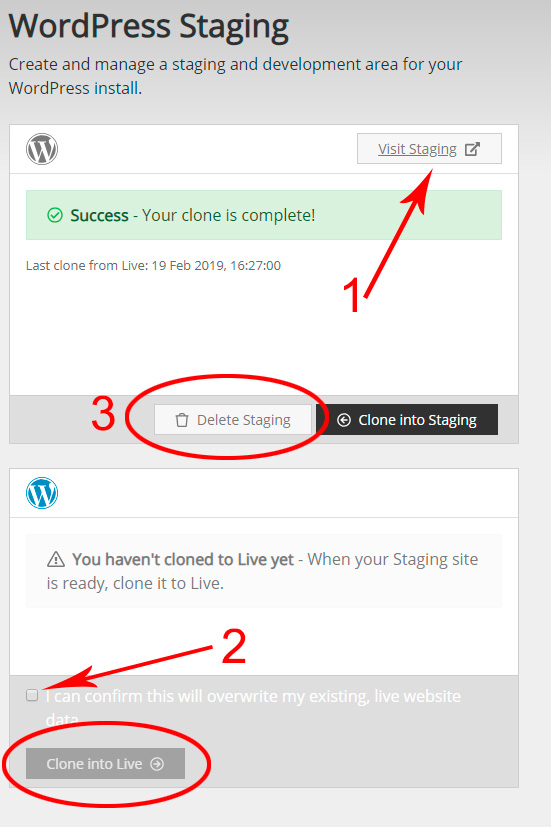
1. When you want to edit the website you can go to staging, click the button labelled “Visit Staging” (no1 on the diagram below).
2. When you have edited your staging website and you want to make that site live… simply click the Clone into Live button, not forgetting to click the agree warning box (Number 2 on the diagram below).
3. When you are done with staging and the site is live, you can delete the staging website. (No 3 on the diagram below)
VOILA
Your staging is complete – ready to go again whenever you need it.